
Set up stock sync
Setup is five short steps on the app's Setup page: Create or join, Connect stores, Check products, First sync and Done. Nothing changes in your stores until you click Start syncing, and a copy of today's stock is saved first.
Before you start
- Give every variant you want to sync a SKU, and use the same SKU for the same product in each store. Products are matched between stores by SKU.
- Turn on Track quantity in Shopify for those variants. Tidro Sync only changes stock that Shopify tracks.
- Install Tidro Sync on every store you want to connect. It is the same app in each store.
- Decide which store is your main store. It manages settings and billing for all connected stores, and one subscription on it covers them all.
Step 1: Create or join
The first time you open Tidro Sync, you see Keep stock the same in all your stores and two ways to start.
In your main store
- Click I'm setting up my main store.
- Enter a Name for your group of stores, for example "My stores". Only you see this name, and you can change it later in Settings.
- Click Continue.
In each other store
- Click I have a connect code.
- Paste the Connect code from your main store (it looks like
AB7K2Q9X). You find it on the main store's Setup page and on its Dashboard under Add another store. Use Copy code there to copy it. - Under What should this store do?, choose one option (see below).
- Click Connect this store.
| Option | What it means |
|---|---|
| Share stock with my other stores (recommended) | This store uses the same stock count as your other stores. A sale here lowers stock everywhere, and the other way round. |
| Only receive products, and keep this store's own stock | This store gets products copied from your main store, but its stock stays separate. Setup ends here for this store: you see This store is connected and a Go to Products button. Products arrive once product sync is turned on in the main store (see Turn on product sync). |
Step 2: Connect stores and choose locations
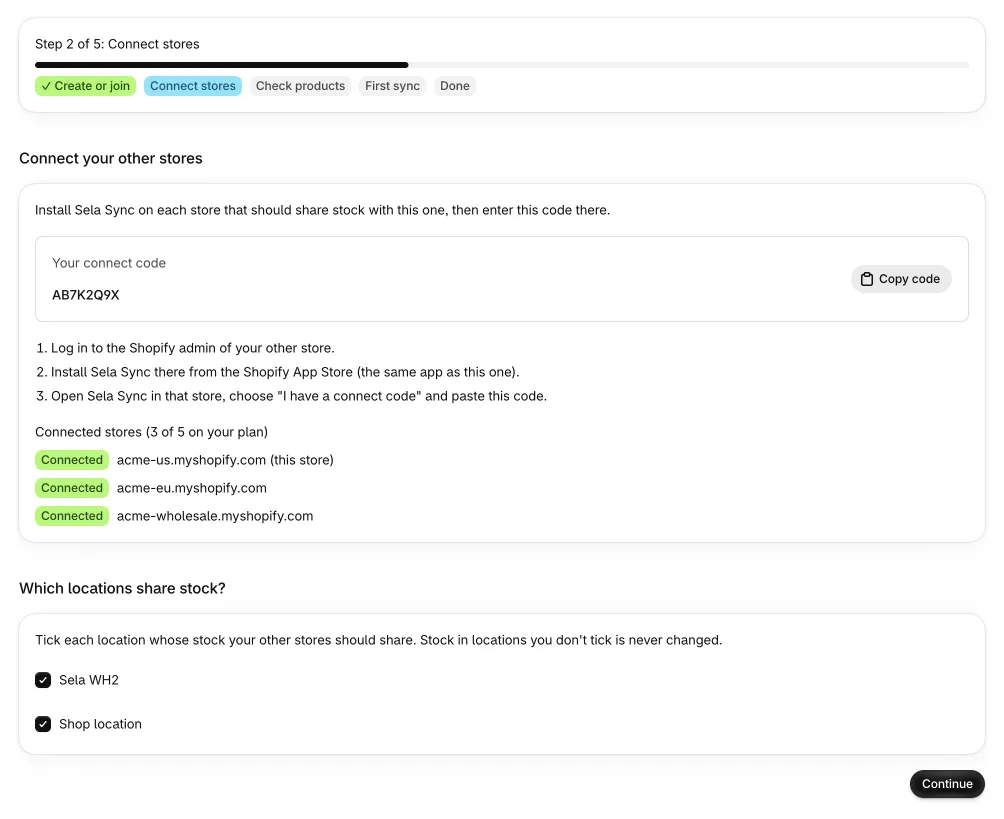
When you open this step, Tidro Sync reads your store's locations and products by itself. This changes no stock and can take a minute for big stores.
Connect your other stores (main store)
The main store shows Connect your other stores with the connect code, a Copy code button and the list of Connected stores with how many your plan allows. In each other store:
- Log in to that store's Shopify admin.
- Install Tidro Sync there from the Shopify App Store.
- Open Tidro Sync, choose I have a connect code and paste the code.
Until another store connects, you see Waiting for your other store to connect. The page updates by itself, so you can leave it open.
Which locations share stock?
Shared locations decide where stock is kept in sync. Stock in a location that isn't shared is never changed.
- Main store: tick each location whose stock your other stores should share. Each ticked location becomes a shared location with the same name. Untick it to stop sharing.
- Other stores: a table lists This store's location and Shares stock with. For each of your locations, pick the main store's location it shares stock with, or leave it on Don't share.
If the main store hasn't chosen its locations yet, other stores see Waiting for your main store. Finish this step in the main store first, then click Check again.
Click Continue when you're done. The button stays off until at least one location is shared and, in the main store, at least one other store is connected.
Step 3: Check products
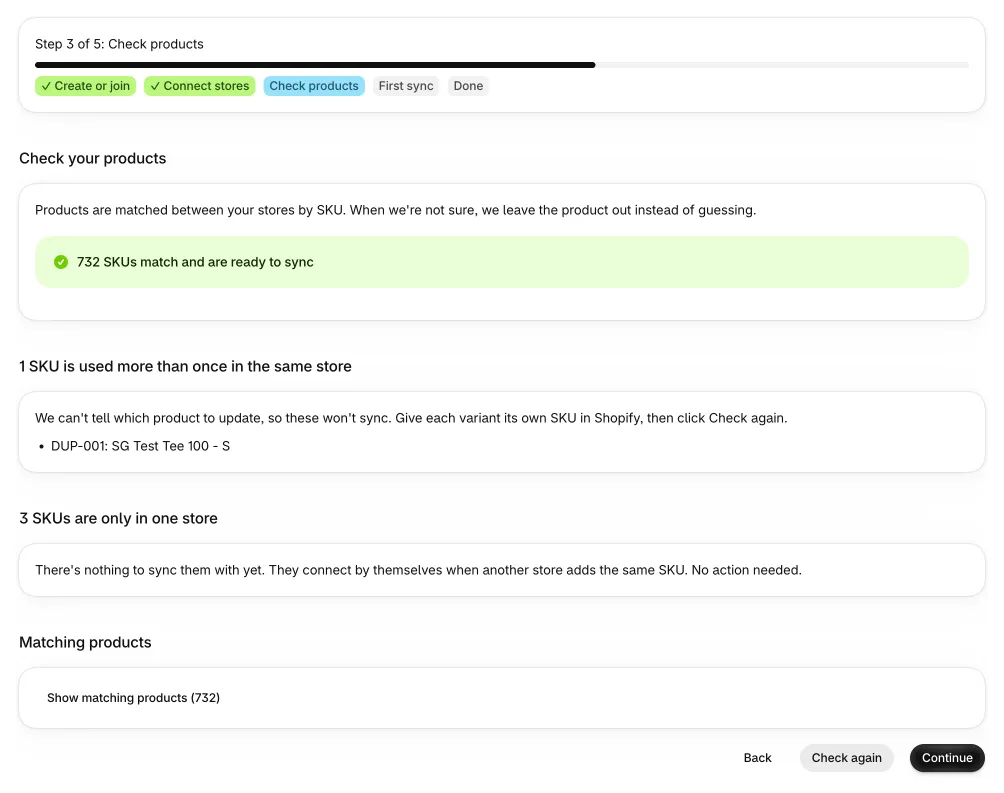
Tidro Sync matches products between your stores by SKU. A product matches when it has the same SKU in at least two stores. When it isn't sure, it leaves the product out instead of guessing.
At the top you see either … SKUs match and are ready to sync or No products match yet. Below that, each kind of problem has its own section with up to five examples:
| Section | Why it isn't synced | How to fix |
|---|---|---|
| SKUs are used more than once in the same store | Two variants in one store share a SKU, so Tidro Sync can't tell which one to update. | Give each variant its own SKU in Shopify. |
| Variants have no SKU | Without a SKU there is nothing to match on. | Add a SKU to these variants in Shopify. |
| SKUs don't have "Track quantity" turned on in every store | Tidro Sync only changes stock that Shopify tracks. | Turn on Track quantity for these variants in each store, if you want them synced. |
| SKUs are only in one store | There is nothing to sync them with yet. | No action needed. They connect by themselves when another store adds the same SKU. |
After fixing something in Shopify, click Check again. Tidro Sync reads your products again and refreshes the report. To see what matched, click Show matching products (the first 50 are listed).
In other stores, this step ends with Your main store starts the first sync: there is nothing else to do there. In the main store, click Continue. This links the matching SKUs into shared items. No stock changes yet.
Step 4: First sync (main store)
Your stores probably show different stock today, so you choose which numbers are right. Under Which store has the right stock today? pick one of:
- [store]: copy its stock to the other stores. Choose this when one store's numbers are accurate.
- Not sure: use the lowest number of all stores (safest). Each item starts at the lowest count found in any store, which keeps you from selling stock you may not have.
The preview runs as soon as you choose. Nothing is written yet. The summary shows … stock numbers will change with a count per store, how many are already right, and how many were skipped because the product isn't stocked at that location in Shopify. If everything already matches, you see Nothing will change.
Click Show what changes to see each SKU, its location and Store: now → after (the first 100 changes are listed).
When it looks right, click Start syncing and confirm. Tidro Sync saves a copy (snapshot) of today's stock in every store, writes the new numbers, and starts syncing.
Step 5: Done
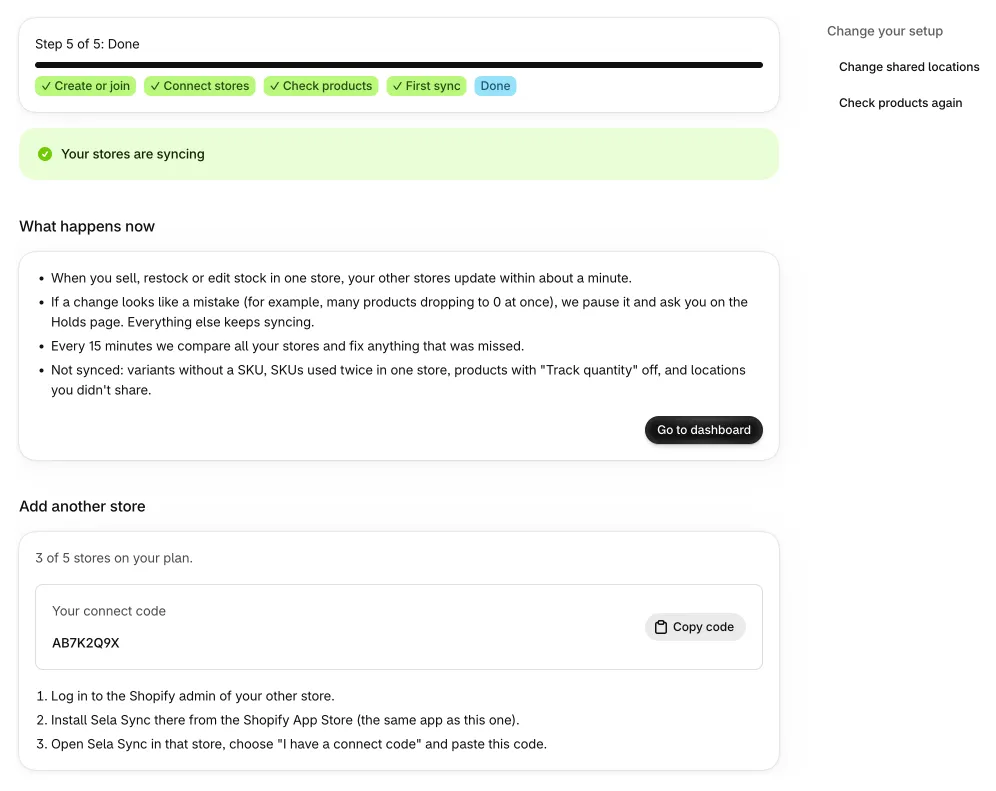
You see Your stores are syncing. From now on:
- When you sell, restock or edit stock in one store, your other stores update within about a minute.
- If a change looks like a mistake (for example, many products dropping to 0 at once), it waits on the Holds page for your decision. Everything else keeps syncing.
- On a regular schedule (set by your plan), Tidro Sync compares all your stores and fixes anything that was missed.
- Not synced: variants without a SKU, SKUs used twice in one store, products with Track quantity off, and locations you didn't share.
The main store also sees Add another store with the connect code. Under Change your setup you can go back to Change shared locations or Check products again at any time.
Next: learn the Dashboard, holds, history & settings.
Adding a store later
Install Tidro Sync on the new store and connect it with the code, as in step 1. It then chooses its shared locations (step 2), and Setup moves on to Done. Your plan sets how many stores can connect; see Pricing.
Troubleshooting
"No products match yet"
Check that your other store is connected, has shared at least one location and uses the same SKUs. Then click Check again.
A SKU is listed as used more than once
Two variants in the same store share a SKU. Give each a unique SKU in Shopify, then click Check again.
"We didn't find any locations in this store"
Add a location in Shopify (Settings → Locations), then reopen the Setup page.
"This preview is out of date"
Stock changed in a store after the preview was made, so it can't be applied safely. Click Preview again, check the numbers, then click Start syncing.
The Continue button is greyed out
In step 2, share at least one location and, in the main store, wait until another store has connected. In step 3, at least one SKU must match.
Products don't reach a store that only receives products
Product sync must be turned on in the main store, and that store must grant access. See Turn on product sync.
Still stuck? Contact support.