
Turn on product sync
Product sync copies products from one source store to the other stores in your pool and keeps them updated. You set it up in four steps on the app's Products page, and nothing is copied until you review a preview and click Apply.
How product sync works
- Products are copied one way only: from the source store to the stores that receive products. Edits made in a receiving store are never copied back.
- Stock stays with stock sync. Product sync never changes quantities, so pausing or turning off product sync doesn't affect stock.
- Safe defaults: titles, descriptions, images, tags and other content are Set once. They are copied when a product is created, and after that edits you make in each store are kept. Variants, SKUs and prices stay in sync. You can change this per field, see Choose what syncs per field.
- Preview first: you see every product that would be created or changed before anything is written.
- Undo: every change is recorded and can be undone, per product or for a whole import.
- Holds: unusual changes, such as many deletes or big price jumps, wait for your approval instead of going out.
Before you start
- Set up a pool first (see Set up stock sync). If there is no pool yet, the Products page shows Set up a pool first with an Open setup button.
- Most steps are done in the owner store. Other stores can see the page, but only the owner store chooses the source store and receiving stores and starts the import.
1. Source store
In the owner store, open Products and pick a store in Copy products from. Products are only copied one way, from this store to the others. You can pick any active store in the pool, including the owner store itself.
Once product sync is on, the source can only be changed in Product settings (see Change the source store below).
2. Stores that receive products
After you choose a source, every other store in the pool is listed with a checkbox. Tick the stores that should receive products. You can change this later in Product settings under Receiving stores, with the Receives products checkbox.
3. Permission to edit products
Product sync needs permission to edit products in the source store and in every store that receives products. Shopify asks for this separately from the stock permissions you granted at install.
The step shows a table with each store and its access: Granted or Needs access. Each store grants it in its own Shopify admin: open Tidro Sync there, go to Products and click Grant access, then approve the Shopify prompt.
4. Preview the first import
Click Preview first import. This turns product sync on and builds a preview. The preview lists what would be created or updated in each store, field by field. Nothing changes until you click Apply on the preview.
Existing products are matched, so nothing is duplicated. By default a product in a receiving store is matched by URL handle and SKU. You can add barcode, or change this, in Product settings under Match existing products by.
Want to check what syncs first? Click Review settings first to open Product settings, then come back and start the preview.
5. Apply
The preview opens on its own page. Check the summary (how many products would be created, updated or skipped), open a few products with Show changes, then click Apply. Changes go out in small batches so stock sync stays fast, and you can pause or cancel at any time. Previews expire after 24 hours.
The preview page is explained in detail in Products, runs & undo.
The Products page after the first import
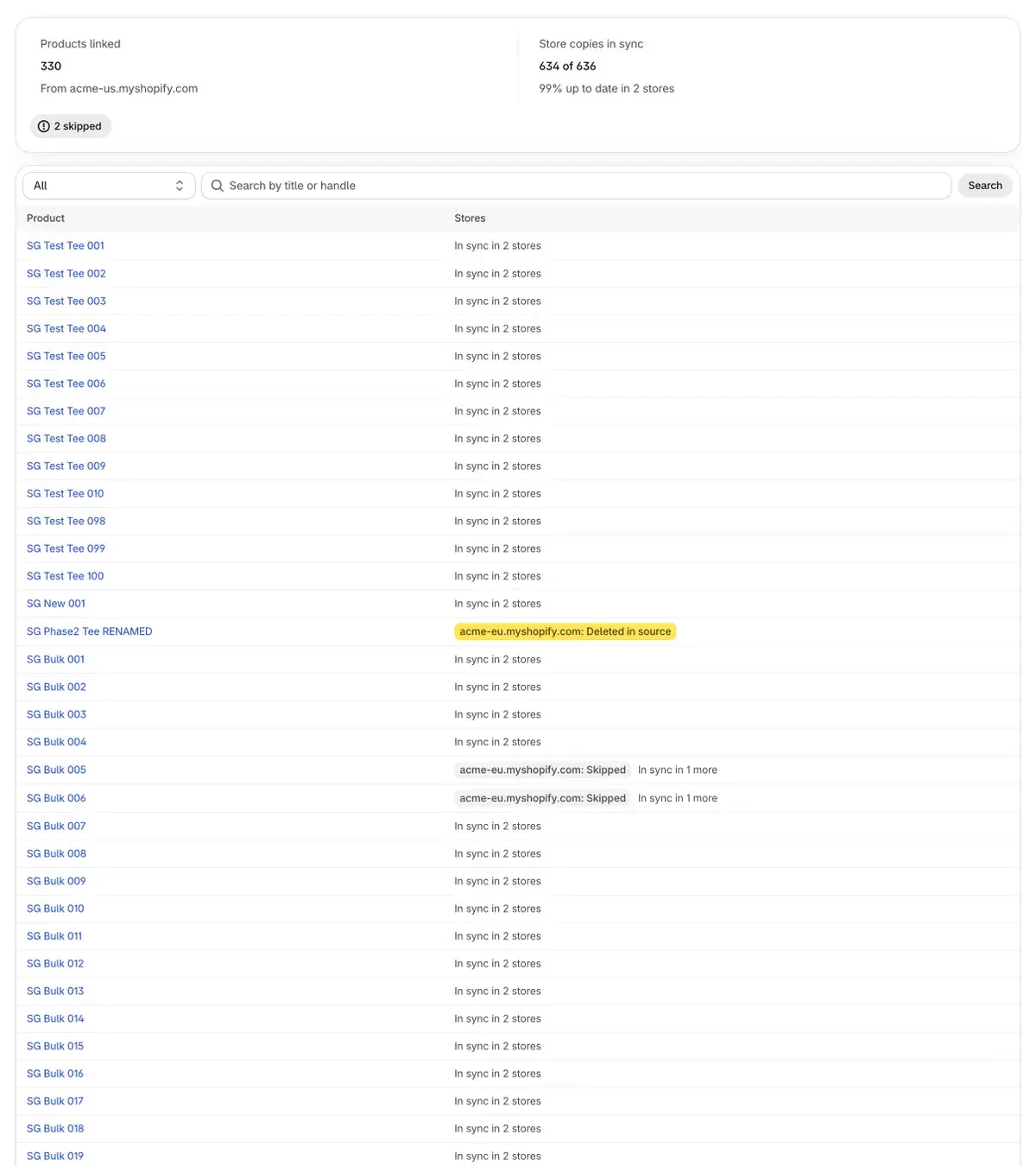
Once the first import is applied, the Products page becomes a list of every synced product.
Summary
- Products linked: how many source products are linked, and from which store.
- Store copies in sync: for example "940 of 1,000", with the share that is up to date and the number of receiving stores. Each product counts once per receiving store.
- Below the numbers, only the problems that exist are listed: failed to sync, need a decision, waiting to sync and skipped. Click one to filter the list. If there are none, you see Everything is in sync.
Filter and search
Use the status menu to filter: All, In sync, Errors, Needs a decision, Skipped, Creating, Deleted in store, Deleted in source or Unsynced. Type in Search by title or handle and click Search. Clear filters resets both. The list shows 50 products per page.
Rows and badges
Each row shows the product title and its stores. Only stores that need attention get a badge, such as "store-b: Error". Stores where the copy is up to date are summed up in plain text: In sync in 3 stores, or In sync in 2 more next to the badges. Click a title to open the product's own page.
| Badge | What it means |
|---|---|
| In sync | The copy is up to date. |
| Creating | The copy is being created now. |
| Error | The last update failed. Fix the reason shown, then click Resync. |
| Needs a decision | More than one product in this store could be the copy. Use Map manually to pick the right one. |
| Skipped | Not synced: outside the products you chose to sync, or not supported. |
| Unsynced | You stopped syncing this product to this store. The copy was left as it is. |
| Deleted in store | The copy was deleted in this store. It is never recreated on its own. Click Recreate if you want it back. |
| Deleted in source | The source product was deleted. The copy was handled by this store's delete setting. |
How to fix each status is covered in Products, runs & undo.
Buttons and banners
- Preview full resync (owner store only): builds a preview that compares every product in the source with its copies, so you can bring every copy up to date at once, for example after changing settings or price rules. Like the first import, nothing is written until you click Apply.
- Settings opens Product settings, Pricing opens the price rules.
- A preview is waiting for you or A resync is in progress: a run is open. Click Open to go to it.
- Product sync is paused: source edits are not copied until you resume it in Product settings. Stock sync is not affected.
Pause or turn off
Both are in Product settings and only the owner store can use them.
- Pause product sync: source edits are queued and not copied while paused. Stock sync keeps running. You can also pause a single store with its Paused checkbox under Receiving stores.
- Turn off product sync: nothing is written to any store while it's off. Copies already created stay as they are, and links are kept, so you can turn it back on later.
Change the source store
In Product settings, under Source store, pick a store in Change source to and click Change source. The app asks you to confirm. What happens:
- Existing copies stop updating. Nothing is deleted or changed in any store.
- Sync stops until you preview and apply a new first import from the new source.
- The new import matches existing products by handle and SKU, so they are linked again instead of duplicated.
- The current source store becomes a store that receives products.
Product holds
Some product changes look like mistakes, for example a bulk edit gone wrong in the source. These wait for your approval in the Product holds section of the Holds page instead of going out. Everything else keeps syncing. A product change can be held for these reasons:
- Many products removed: many products would be drafted, archived or deleted at once.
- Big price change: the new price is far from the store's current price.
- Many variants removed: several variants would be removed from one product at once.
- Images removed: most of a product's synced images would be removed.
- Many new products: an unusual number of products would be created in a short time, outside an import you applied.
Approve writes the change to that store now. Reject skips it: the same change won't be held again, and the store keeps what it has. Only the owner store can approve or reject. The limits are set in Product settings under Safety holds (see Choose what syncs per field). The Holds page itself is described in Dashboard, holds, history & settings.
Questions
Will the first import create duplicates of products I already have?
Products that already exist in a receiving store are matched by URL handle and SKU (and barcode, if you turn it on), and linked instead of created again. If more than one product could be the copy, the product is marked Needs a decision and nothing is written until you pick one with Map manually.
New products appear as drafts in my other stores. Is that right?
Yes, by default new products start as drafts so you can review them before selling. Change it per store in Product settings with New products start as.
A store shows "Needs access" even after I clicked Grant access in the owner store.
Each store grants access for itself. Open Tidro Sync in that store's own Shopify admin and click Grant access there.
Which products are never synced?
Gift cards, bundles and combined listings are skipped, and so are products with more variants than Shopify allows to copy. Videos and 3D models are skipped; images are copied.