
Choose what syncs per field
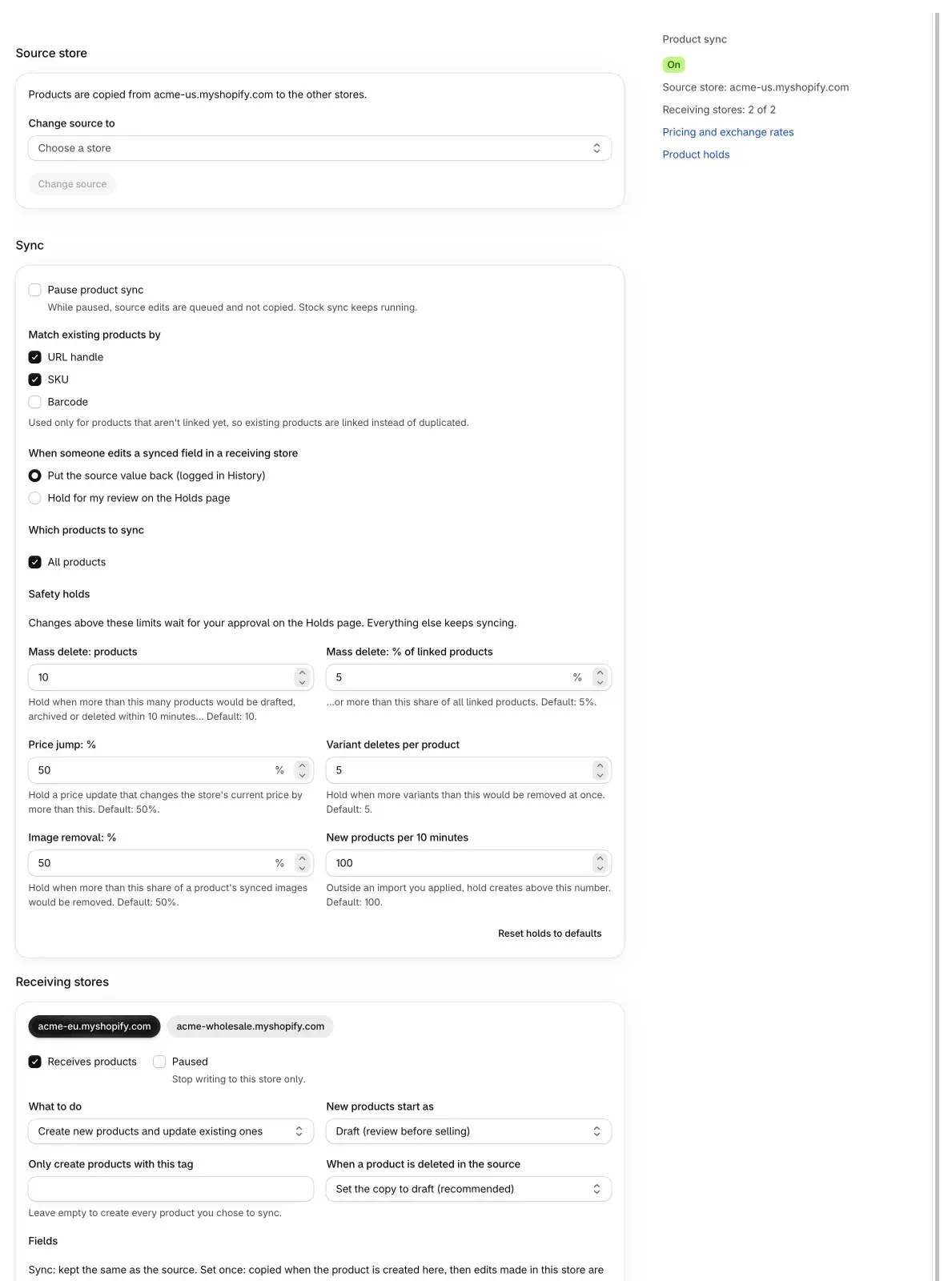
The Product settings page decides which products are synced, how existing products are matched, what happens to each field in each receiving store, and when a change waits for your review. Only the owner store can change these settings; other stores can view them.
Open it from the Products page with Settings. Changes are not saved until you click Save in the Shopify save bar at the top. Discard throws away unsaved edits. If something needs fixing, the page shows Fix the highlighted fields, then save again.
The side panel shows whether product sync is On, Paused or Off, the source store, how many receiving stores are on, and links to Pricing and exchange rates and Product holds.
Sync, Set once and Ignore
Every field has one of three settings, chosen per receiving store:
- Sync: kept the same as the source. A change in the source is copied to this store.
- Set once: copied when the product is created in this store. After that, edits made in this store are kept.
- Ignore: never written.
Fields and defaults
These are the fields in the Fields table under Receiving stores, with the setting each store starts with.
| Field | What it covers | Default | Note |
|---|---|---|---|
| Title | Product name. | Set once | |
| Description | Product description text and formatting. | Set once | |
| Images | Product images. | Set once | Videos and 3D models are skipped. |
| Vendor | Brand or vendor name. | Set once | |
| Product type | Your own product type label. | Set once | |
| Category | Shopify standard product category. | Set once | |
| Tags | Product tags. | Set once | See Tags below for Add or Mirror. |
| Search engine listing | SEO title and description. | Set once | |
| URL handle | The product's web address. | Ignore | No Set once. Changing it affects SEO; a redirect is added. |
| Variants and options | New sizes, colors and other options. | Sync | |
| SKU and barcode | SKU and barcode of each variant. | Sync | Stock links follow variants, so SKU edits never break stock sync. |
| Shipping details | Weight, HS code, country of origin, requires shipping. | Sync | |
| Price | Selling price, after this store's price rules. | Sync | |
| Compare-at price | The crossed-out "was" price. | Sync | |
| Cost per item | Your cost, used for profit reports. | Sync | |
| Metafields | Only the metafield keys you list. | Ignore | List keys in Metafields to sync. |
| Status | Active / draft / archived. | Ignore | No Set once. Counts toward the mass-delete hold. |
| Collections | Manual collections, matched by handle. | Ignore | Products are only added, never removed. |
URL handle and Status have only Sync and Ignore. When a product is created, its handle comes from the source and its status comes from New products start as.
Sync section
These settings apply to all receiving stores.
Pause product sync
While paused, source edits are queued and not copied. Stock sync keeps running. The Products page shows Product sync is paused until you untick it.
Match existing products by
Choose any of URL handle, SKU and Barcode. The default is URL handle and SKU. Matching is used only for products that aren't linked yet, so products that already exist in a receiving store are linked instead of duplicated. Pick at least one.
When someone edits a synced field in a receiving store
- Put the source value back (logged in History) (default).
- Hold for my review on the Holds page.
This only concerns fields set to Sync. Fields set to Set once or Ignore can be edited freely in each store.
Which products to sync
All products is on by default. Untick it to sync only some products. Then fill in any of these filters, separating values with commas:
- Tags, Vendors, Product types, Collection handles.
- Product status: Active, Draft, Archived.
A product must match every filter you fill in, and any one value within a filter is enough. For example, Tags "summer, sale" with Vendors "Acme" syncs Acme products tagged summer or sale. Matching ignores upper and lower case. Products outside the filters show as Skipped with the reason "Outside the products you chose to sync."
Safety holds
Changes above these limits wait for your approval on the Holds page. Everything else keeps syncing. Reset holds to defaults puts all six back.
| Setting | Holds when… | Default |
|---|---|---|
| Mass delete: products | more than this many products would be drafted, archived or deleted within 10 minutes… | 10 |
| Mass delete: % of linked products | …or more than this share of all linked products. | 5% |
| Price jump: % | a price update would change the store's current price by more than this. | 50% |
| Variant deletes per product | more variants than this would be removed at once. | 5 |
| Image removal: % | more than this share of a product's synced images would be removed. | 50% |
| New products per 10 minutes | more products than this would be created, outside an import you applied. | 100 |
See Product holds for what each hold means, and the Holds page for approving or rejecting.
Receiving stores
Each receiving store has its own settings. If there are several, click a store's name to switch between them. Edits to several stores are saved together with one Save.
Receives products and Paused
- Receives products: turn a store on or off for product sync.
- Paused: stop writing to this store only.
What to do
- Create new products and update existing ones (default).
- Only update products that already exist here. Products that don't exist yet show as skipped.
- Only create new products, never update.
New products start as
- Draft (review before selling) (default).
- Active.
- Same as in the source store.
Only create products with this tag
Leave empty to create every product you chose to sync. If you enter a tag, a product is only created in this store when it has that tag in the source.
When a product is deleted in the source
- Set the copy to draft (recommended) (default).
- Archive the copy.
- Do nothing.
- Delete the copy (only products Tidro Sync created).
Fields
The table of fields with Sync, Set once and Ignore, described above.
Tags
- Add source tags, keep this store's own tags (default).
- Make tags exactly the same as the source. This shows Tags added in this store will be removed: tags someone added only in this store are removed on the next sync.
Variants removed in the source
- Keep them here (default).
- Remove them here (only variants Tidro Sync created).
Metafields to sync
Comma-separated "namespace.key", for example custom.material. Used when Metafields is set to Sync or Set once. Metafields not listed here are never written.
Create missing collections
Used when Collections is set to Sync or Set once. If a manual collection doesn't exist in this store, create it. Otherwise the product is just not added to it. Products are only added to collections, never removed.
Turn off product sync
At the bottom of the page, Turn off product sync stops copying products to every store. Stock sync keeps running. Nothing is written to any store while product sync is off. Copies already created stay as they are, and links are kept, so you can turn it back on later.
Questions
I changed a title in a receiving store and it changed back.
Title is set to Sync for that store, and When someone edits a synced field in a receiving store is set to put the source value back. Set the field to Set once to keep local edits, or choose Hold for my review on the Holds page.
I changed the description in the source, but other stores still show the old one.
Description is Set once by default, so it is only copied when the product is created. Set it to Sync if source edits should always be copied.
Does product sync change stock?
No. Stock stays with stock sync. Product sync never changes quantities.
Will editing SKUs break stock sync?
No. Stock links follow variants, so SKU edits never break stock sync.