
Products, runs & undo
Every synced product has its own page with its status in each store and a full change history. Imports, resyncs and undos run as previews you apply, and every change can be undone.
A product's page
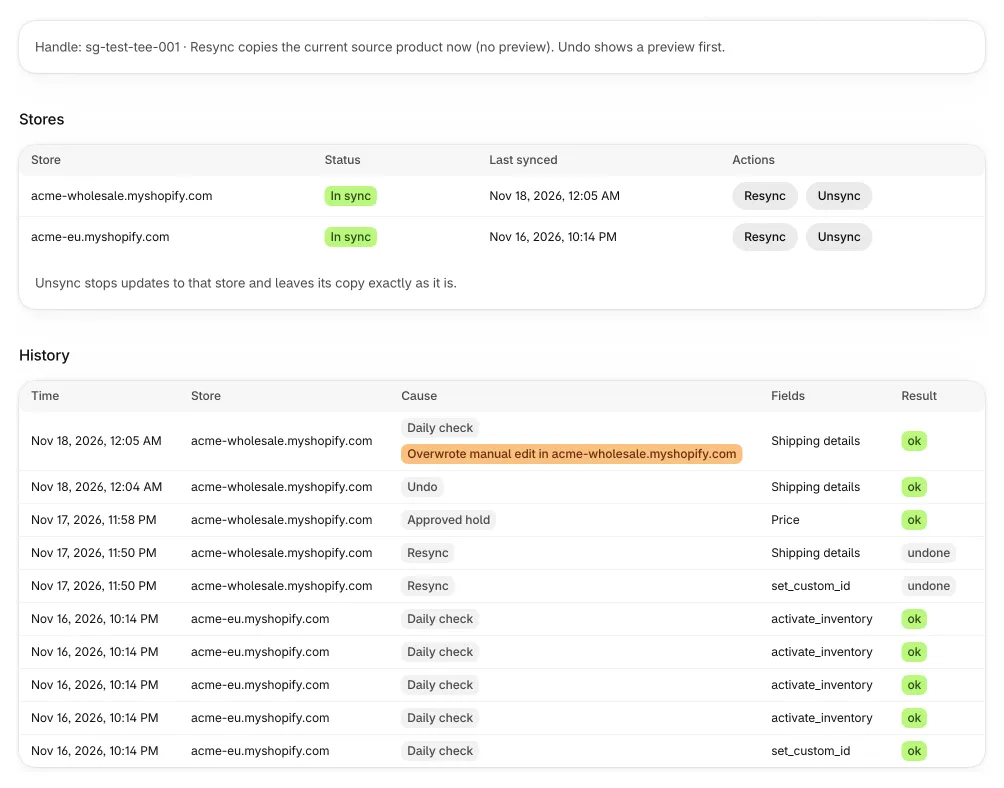
Click a product title on the Products page to open it. The top shows the product's URL handle. Actions are available in the owner store; other stores see Product sync is managed by the owner store and can view the page.
Stores
The Stores table has one row per receiving store:
- Status: a badge such as In sync, Error or Needs a decision, the reason in plain words, and a hint on how to fix it. The full list of statuses is in Turn on product sync.
- Last synced: when the copy was last written.
- Actions: Resync, or Recreate for a copy that was deleted in that store, and Unsync.
Actions
- Resync (per store) and Resync all stores (top of the page): copy the current source product now. There is no preview for a single product. The copy follows that store's field settings and price rules.
- Recreate: shown when the copy was deleted in that store (Deleted in store). Tidro Sync never recreates a deleted copy on its own; this creates it again.
- Unsync: stops updates to that store and leaves its copy exactly as it is. The status becomes Unsynced.
- Map manually: links the product to a copy that already exists in a store. Pick the Store, enter the Product ID in that store (the number at the end of the product's address in that store's admin, for example 8123456789) and click Link product. From then on it is updated like any other copy, following that store's field settings. Use it for Needs a decision.
- Undo changes: builds an undo preview for this product in every store. Nothing changes until you apply it (see Undo).
History
Every write to every store is recorded. The History table shows Time, Store, Cause, the Fields that changed and the Result. Click Show before → after to see the old and new values. Causes:
| Cause | What triggered the change |
|---|---|
| Source edit | The product was edited in the source store. |
| Import | An import you applied. |
| Resync | A resync you started. |
| Daily check | A regular background check of synced products. |
| Undo | An undo you applied. |
| Approved hold | A held change you approved on the Holds page. |
| Source deleted | The source product was deleted, and the store's delete setting was applied. |
| Manual action | An action taken by hand, for example on the product's page. |
A Overwrote manual edit in … badge means a field someone edited in that store was put back to the source value, because the field is set to Sync.
Runs: import, resync and undo
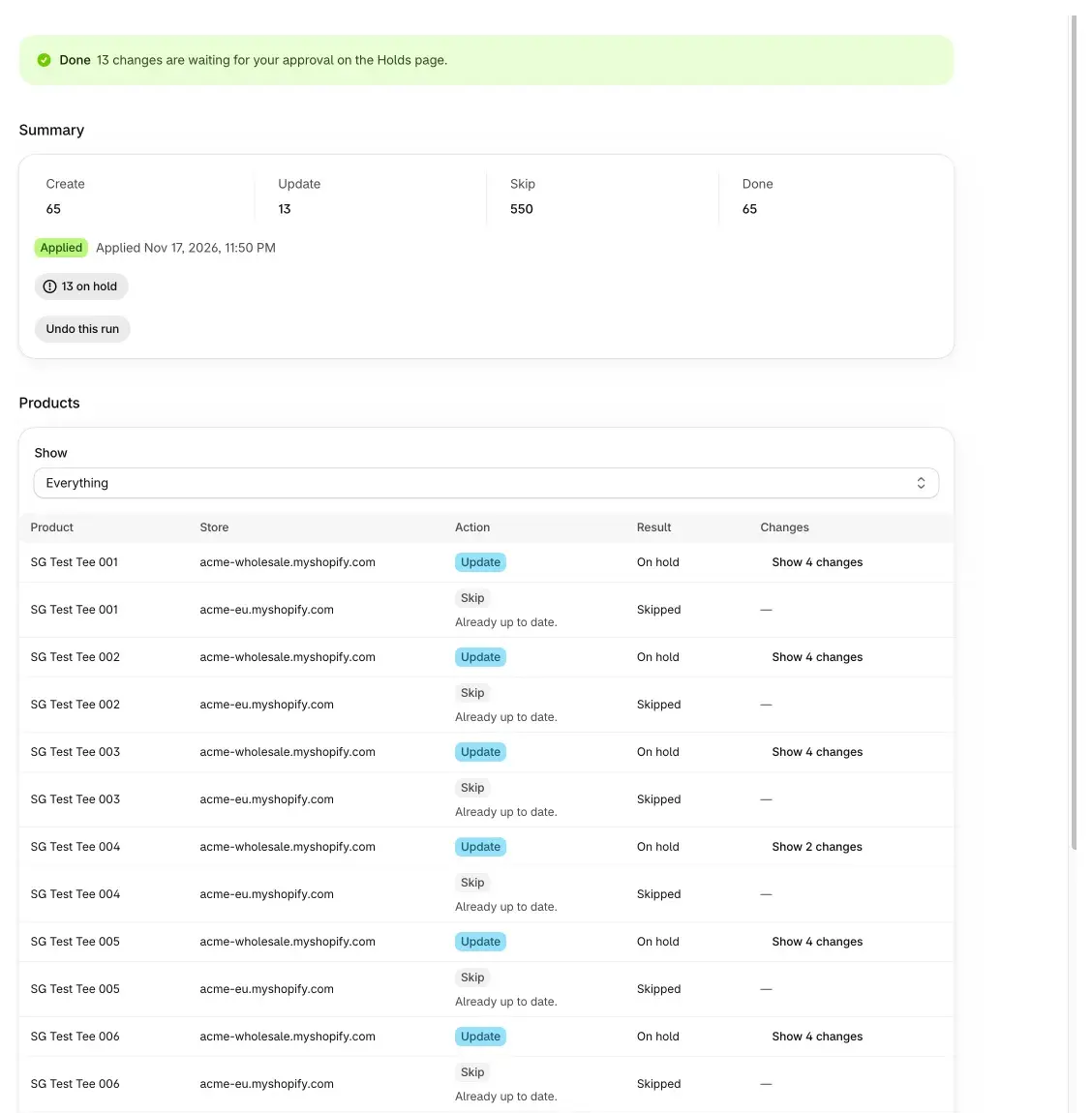
Bigger jobs run as a run: the first Import, a Resync started with Preview full resync, and every Undo. Each run starts as a preview. The run page title shows its kind and start time. An open run is also shown as a banner on the Products page with an Open button.
Run status
| Status | What it means |
|---|---|
| Preparing preview | Products are being read and compared. Nothing is being changed. The page updates on its own. |
| Preview | Nothing has been changed yet. Review, then click Apply. Previews expire after 24 hours, and everything is re-checked when you apply. |
| Applying | Changes go out in small batches so stock sync stays fast. A progress bar shows how far it is. |
| Paused | Nothing more is written until you resume. Changes already made stay. |
| Applied | Done. If some changes were held, the banner says how many wait on the Holds page. |
| Cancelled | Changes made before cancelling stay; you can undo them. |
| Expired | The preview was not applied within 24 hours. Start a new one from the Products page. |
| Failed | The run stopped with an error. The banner shows the reason. |
Summary
- Counts: Create, Update, Skip, plus Restore for an undo and Done once the run is applying or finished. Each product counts once per receiving store.
- Problems, when there are any: need a decision, and after applying also failed and on hold. Click on hold to go to the Holds page.
- Skipped because: the number of skipped products per reason, most common first.
Buttons
- Apply (on a preview): make the changes.
- Pause and Resume while applying.
- Cancel: stop the run. Changes already made stay.
- Undo this run: on an applied, cancelled or failed import or resync that wrote changes. It builds an undo preview.
Only the owner store can apply, pause, cancel or undo runs.
Products in a run
The Products table lists each product and store with its Action, Result and Changes. Use Show to filter: Everything, Create, Update, Skip, Needs a decision or Restore. Click Show 3 changes to see each field as "before → after"; Hide changes closes it. The result is one of Waiting, Done, Skipped, Failed, On hold or Paused. The table shows 100 rows per page; use Previous and Next.
Why a product was skipped or needs a decision
The same reasons appear on runs and on a product's page.
| Reason shown | What to do |
|---|---|
| Already up to date. | Nothing to change. |
| Outside the products you chose to sync. | Check Which products to sync in Product settings. |
| This store only updates products that already exist (Product settings, What to do). | Change What to do for that store if it should create products. |
| The source product doesn't have the tag this store needs before a product is created. | Add the tag in the source, or clear Only create products with this tag. |
| Prices can't be converted: this store uses a different currency from the source. | Set an exchange rate on the Pricing page. |
| The calculated price is 0 or less, so it isn't written. | Check this store's price rules on the Pricing page. |
| Gift cards / Bundles / Combined listings aren't synced. | These product kinds are not supported. |
| The product has more variants than Shopify allows to copy. | Not supported. |
| You stopped syncing this product to this store. | The product was unsynced for that store. |
| Waiting for your review on the Holds page. | Approve or reject it on the Holds page. |
| You rejected this change on the Holds page. | The store keeps what it has. |
| The product's options changed in the source. | Check the product, then resync or map it manually. |
| More than one product in this store could be the copy. | Use Map manually to pick one. |
| A product here has the same URL handle but different SKUs. | Use Map manually to pick the right one. |
| Its SKUs are spread over two products in this store. | Use Map manually to pick one. |
| The same SKU is used more than once in this store. | Fix the SKUs or use Map manually. |
| The matching product in this store is already linked to another source product. | Check which source product it belongs to. |
| The copy was deleted in this store. | Click Recreate on the product's page if you want it back. |
| This store's setting for deleted source products is Do nothing. | Change it in Product settings if needed. |
| This store hasn't granted permission to edit products. | Open Tidro Sync in that store and click Grant access. |
| The pool is at its plan limit. | The owner store can upgrade on the Billing page. |
| Waiting for stock sync to link this product's variants. | It retries on its own. |
| Already a draft in this store, so there is nothing to undo. | Shown in undo previews. |
Undo
Every change Tidro Sync writes is recorded with the value it replaced. You can undo the changes to one product (Undo changes on its page) or a whole run (Undo this run). Undo is a run too: you get a preview first, and nothing changes until you click Apply.
- For a copy that already existed in the store, the fields are put back to their values from before the change.
- For a product Tidro Sync created, the copy is set to draft. If the store's delete setting is Delete the copy, it is deleted instead.
- A copy that was deleted in the store meanwhile is skipped.
- A copy whose values already match is skipped with "Already up to date."
Product holds
Risky product changes, such as many products removed at once or a big price change, wait in the Product holds section of the Holds page. In a run they show as On hold. Approve writes the change to that store now; Reject skips it and the store keeps what it has. See Product holds for the reasons and the Holds page for how to review them.
Questions
A product shows Error. What do I do?
Open the product. The status explains the reason. Fix it (for example grant access, set an exchange rate or fix a duplicate SKU), then click Resync for that store.
A product shows Needs a decision.
More than one product in that store could be the copy. Find the right one in that store's admin, copy the number at the end of its address, then use Map manually.
Someone deleted a copy in a receiving store. Will it come back?
No. It shows as Deleted in store and is never recreated on its own. Click Recreate on the product's page if you want it back.
My preview expired.
Previews are valid for 24 hours. Start a new one from the Products page with Preview full resync, or Preview first import if the first import was never applied.