
Dashboard, holds, history & settings
Once your stores are syncing, five pages cover day-to-day work: the Dashboard shows sync health, Holds lists changes waiting for you, History traces every stock change, Settings holds the safety rules, and Billing shows your plan.
Dashboard
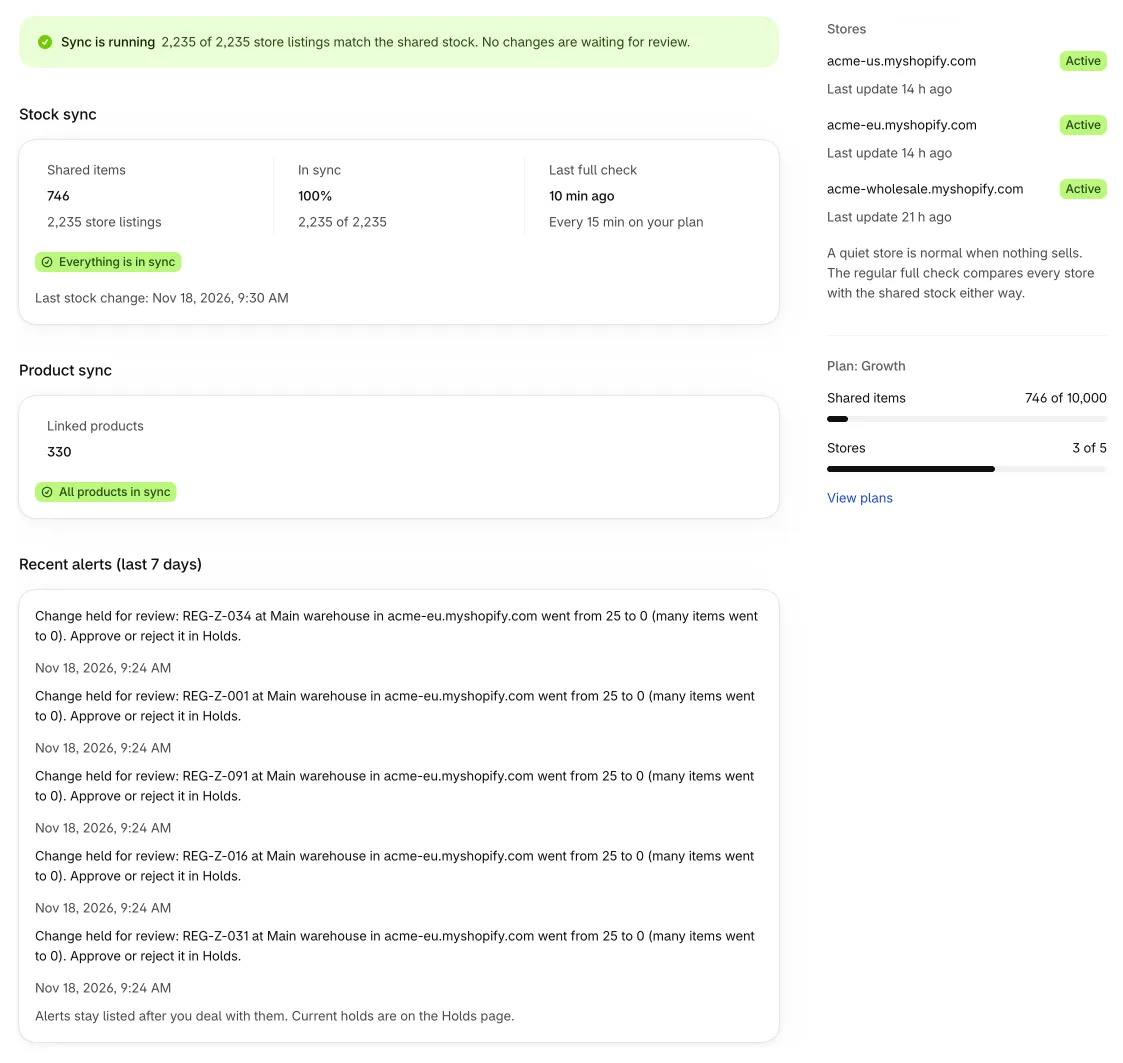
The Dashboard is the first page you see after setup.
Health banner
| Banner | What it means | What to do |
|---|---|---|
| Sync is running | Store listings match the shared stock and nothing is waiting for review. | Nothing. |
| Needs your attention | Changes are on hold, store listings differ from the shared stock, product updates failed, or updates are delayed. The banner says which. | Click Review holds or Review products. For listings that differ, check History for those SKUs, then click Check all stores now. Delayed updates are retried by themselves. |
| Sync is paused | No store's stock is updated. A sale in one store won't lower stock in the others, so overselling is possible. | The main store clicks Resume sync. |
| Finish setup to start syncing | Setup isn't finished, so nothing syncs yet. | Click Open setup. |
A store that only receives products sees This store keeps its own stock instead. The stock numbers on its Dashboard are for your other stores.
Stock sync numbers
- Shared items: how many SKUs are linked, and how many store listings that makes across all stores.
- In sync: the share of store listings that match the shared stock.
- Last full check: when Tidro Sync last compared every store with the shared stock. How often this runs depends on your plan.
- Problem counts: differ from shared stock (opens History), on hold (opens Holds) and updates queued to stores. When all are zero you see Everything is in sync.
- Last stock change: the time of the latest change to shared stock.
If product sync is on, a Product sync card shows linked products and counts of products that failed to sync, need a decision or are on hold. See Products, runs & undo.
Recent alerts
Recent alerts (last 7 days) lists up to five recent alerts, so you see them even without an alert email. Similar alerts are grouped with "and … more like this". Alerts stay listed after you deal with them. Common alerts:
- Oversold: your stores sold more units than you have (for example, two stores sold the last unit within seconds). All stores now show 0. Restock, or cancel an order.
- Changes held: an unusual change is waiting on the Holds page.
- A store hasn't sent stock updates for over a day: Tidro Sync starts a full stock check. If it keeps happening, open Tidro Sync in that store once to reconnect it.
- Stock drift: a store listing differs from the shared stock and Tidro Sync couldn't explain why.
- Low stock: an item is at or below the level you set in Settings.
Side panel
- Stores: each connected store with its status and Last update time. A store that has been quiet for over a day is highlighted. A quiet store is normal when nothing sells; the regular full check covers it either way.
- Plan: your plan name and usage of Shared items and Stores, with a View plans link.
Get started checklist
Right after setup, a Get started card suggests next steps, such as Add another store, Set a safety buffer and Turn on product sync. Each has a button that takes you there. Click Dismiss to hide the card.
Dashboard actions
- Check all stores now: starts a full check right away. Results appear on the Dashboard within a minute. Not available while sync is paused.
- Pause sync / Resume sync (main store only): stops or restarts all stock updates in every store.
Holds
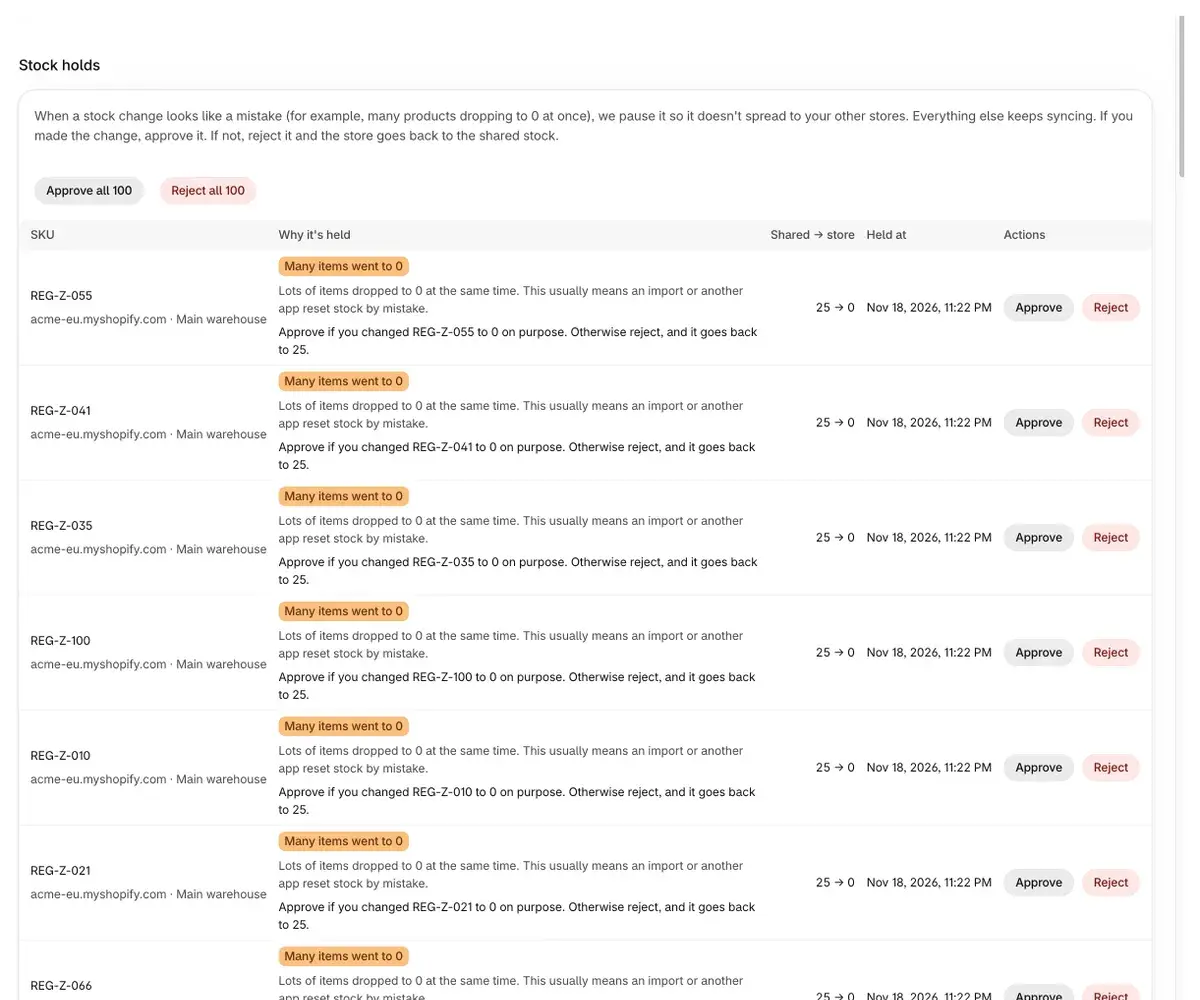
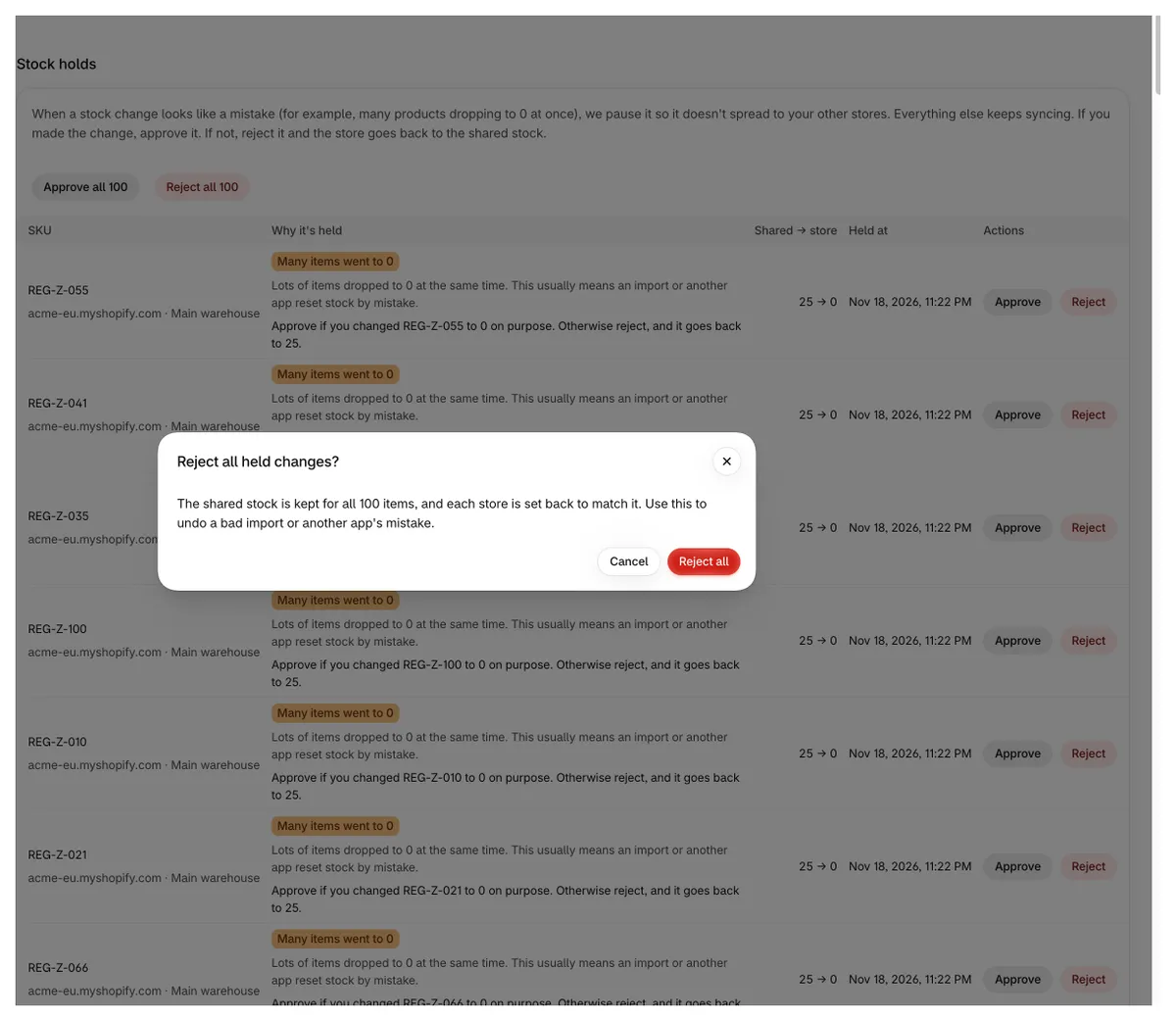
When a stock change looks like a mistake, Tidro Sync holds it instead of passing it to your other stores. Everything else keeps syncing. If you made the change, approve it. If not, reject it.
Why a change is held
| Reason | What happened |
|---|---|
| Many items went to 0 | Lots of items dropped to 0 at the same time. Often an import or another app reset stock by mistake. |
| Sharp drop | Stock fell by most of its value in one change. |
| Sudden jump | Stock jumped far above its previous level in one change. |
| Too many changes at once | A store sent an unusual number of stock changes within one minute. |
| Invalid number | The new value isn't realistic (far below zero or extremely large), so it was not applied. |
Orders, cancellations and refunds are not held for being large; only an invalid number is held for them. Manual edits, imports and changes by other apps are checked against all the rules. You can tune the limits in Settings.
Stock holds
Each row shows the SKU with its store and location, Why it's held, Shared → store (the shared number and the new number in that store) and Held at.
- Approve: the new number becomes the shared stock and is passed to all other stores.
- Reject: the shared stock stays as it was, and the store where the change happened is set back to match it.
- Approve all / Reject all: shown when more than one change is held. Reject all is the quick way to undo a bad import or another app's mistake.
Every action asks you to confirm first. The main store can decide any hold. Other stores can decide only holds from their own store; for the rest they see Decided in and the store name.
Product holds
If product sync is on, risky product changes appear under Product holds, for example Many products removed, Big price change, Many variants removed, Images removed, Many new products or Edited in this store. They work differently from stock holds:
- Approve: the change is checked against the source store again and written to that store now.
- Reject: nothing is written. The store keeps what it has, and the same change won't be held again.
Only the main store can approve or reject product holds. More in Products, runs & undo.
History
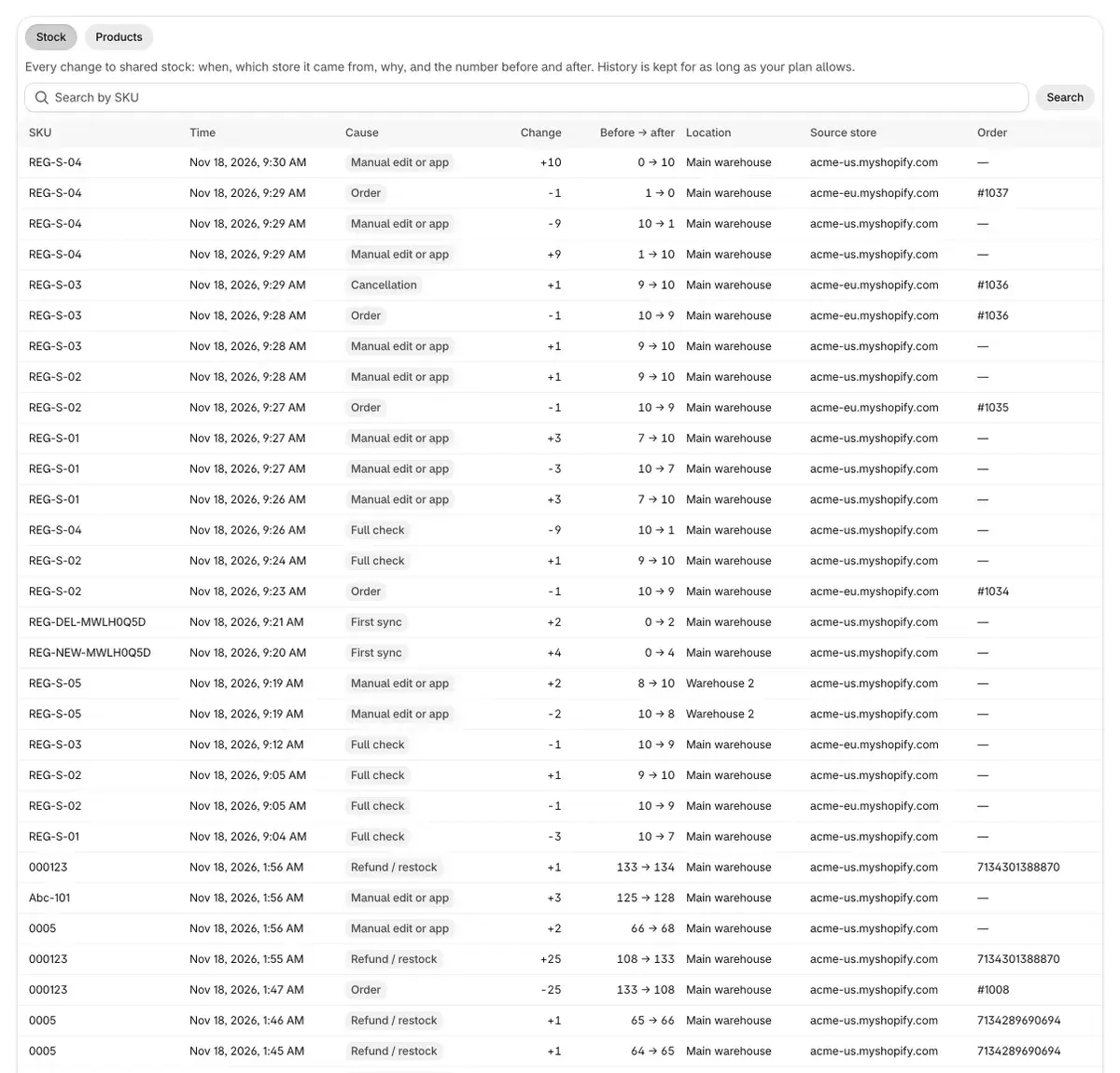
History has two views: Stock and Products. How far back it goes depends on your plan.
Stock
Every change to shared stock, 50 per page. The columns are:
| Column | Shows |
|---|---|
| SKU | The shared item. |
| Time | When the change happened. |
| Cause | Order, Cancellation, Refund / restock, Manual edit or app, Full check, First sync, Snapshot restore or Approved hold. |
| Change | Units added or removed. |
| Before → after | The shared stock before and after. |
| Location | The shared location. |
| Source store | The store where the change started. |
| Order | The order number, when an order caused it. |
To follow one product, type its SKU in Search by SKU and click Search. Clear the field and search again to see everything.
Products
Every change product sync wrote to your stores: which fields, the value before and after, and why. Overwrote manual edit means someone changed a synced field in that store and the source value was put back.
Export CSV
Click Export CSV to download the current view as a spreadsheet. In the Stock view, a SKU search limits the export to that SKU.
Settings
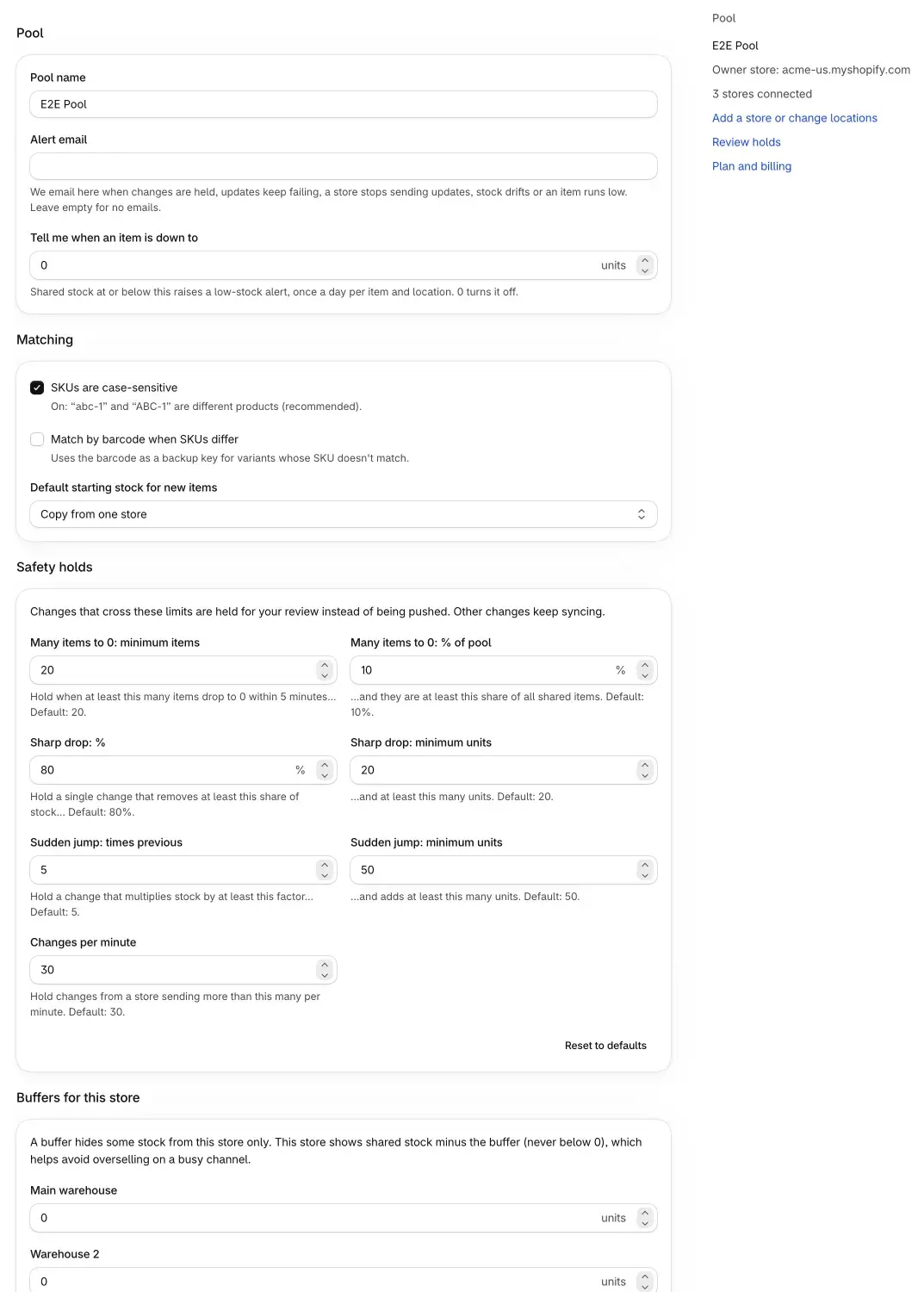
Pool settings are managed by the main store. Other stores see a note saying so and can only set buffers for themselves. After any change, use the save bar at the top of the page to save or discard.
Pool
- Pool name: the name of your group of stores. Only you see it.
- Alert email: where Tidro Sync sends one summary a day of held changes, failed updates, quiet stores, drift and low stock. Oversold items, a disconnected store or a missing permission are emailed right away. Leave it empty for no emails.
- Tell me when an item is down to: shared stock at or below this number raises a low-stock alert, at most once a day per item and location. 0 turns it off.
Matching
- SKUs are case-sensitive (on by default): "abc-1" and "ABC-1" are different products.
- Match by barcode when SKUs differ: variants without a SKU are matched by their barcode instead.
- Default starting stock for new items: Copy from one store or Lowest number across stores. This is also the choice pre-selected in setup's first sync.
Safety holds
Changes that cross these limits are held for your review. Other changes keep syncing. Both parts of a rule must be true for a change to be held. Reset to defaults puts all values back.
| Setting | Default | Meaning |
|---|---|---|
| Many items to 0: minimum items | 20 | Hold when at least this many items drop to 0 within 5 minutes… |
| Many items to 0: % of pool | 10% | …and they are at least this share of all shared items. |
| Sharp drop: % | 80% | Hold a single change that removes at least this share of stock… |
| Sharp drop: minimum units | 20 | …and at least this many units. |
| Sudden jump: times previous | 5 | Hold a change that multiplies stock by at least this factor… |
| Sudden jump: minimum units | 50 | …and adds at least this many units. |
| Changes per minute | 30 | Hold changes from a store sending more than this many per minute. |
Buffers for this store
A buffer hides some stock from this store only. The store shows shared stock minus the buffer, never below 0. This helps avoid overselling on a busy channel. Each store sets its own buffers, one number per shared location.
Example: shared stock is 12 and the buffer is 2, so this store shows 10. Your other stores still show 12.
Snapshots
A snapshot records stock in every store. Tidro Sync takes one automatically before the first sync, before a location change and before every restore. The table shows when it was Taken, the Reason (for example Before first sync or Taken manually) and how many Stock values it holds. The latest 10 are listed; click Show all for the rest.
- Take snapshot now (main store): save a snapshot before a big change, such as a bulk import.
- Restore (main store): puts stock in every store back to what it was when the snapshot was taken.
Leave pool
Leave pool stops syncing for this store. Its stock stays exactly as it is: nothing is set to 0 or deleted, in any store. You can join again later with a connect code. The main store can leave only after all other stores have left.
The side panel links to Add a store or change locations (opens Setup), Review holds and Plan and billing.
Billing
One subscription covers the whole pool. It is charged on the main store only; other stores in the pool use Tidro Sync for free. Safety holds, previews, snapshots and regular full stock checks are included in every plan. Plans are billed through Shopify.
- Current plan shows your plan and usage of Shared items (SKUs) and Stores.
- The Plans table compares price, shared items, stores, how often the full stock check runs, and how long history is kept. For current prices, see Pricing.
- Change plan (main store only) opens Shopify's plan page.
Questions
A store listing "differs from shared stock". What now?
Tidro Sync didn't overwrite it because it couldn't explain the difference. Search that SKU in History to see the last changes, fix the number in Shopify if needed, then click Check all stores now on the Dashboard.
An import set many items to 0 by mistake
The changes are most likely held as Many items went to 0. Open Holds and click Reject all. Each store is set back to the shared stock.
I see an oversold alert
Two stores sold the last units at nearly the same time. All stores show 0 for that item. Restock it, or cancel one of the orders.
I'm not getting alert emails
Check that Alert email is filled in under Settings in the main store. The summary arrives once a day, only when there were alerts. Recent alerts are also listed on the Dashboard.
Still stuck? Contact support.