
Price rules per store
Each store that receives products can sell at its own prices. On the Pricing page you set an exchange rate and simple rules (multiply, add an amount, round) for the price, the compare-at price and the cost per item. A preview shows the result on real products before anything is synced.
Open it from the Products page with Pricing, or from Product settings with Pricing and exchange rates. Only the owner store can change prices; other stores see Prices are managed by the owner store and can view the rules and preview.
If you have several receiving stores, pick one in the Store menu in the side panel. Each store has its own rules. Edits are saved with Save in the Shopify save bar; edits to several stores are saved together.
How a price is calculated
For each variant, in this order:
- Take the source price.
- Multiply by the exchange rate (only when the store sells in a different currency).
- Multiply by the multiplier.
- Add the add amount (it can be negative, like -0.5).
- Apply the rounding.
In short: new price = source price × exchange rate × multiplier + amount, then rounded. The defaults are multiplier 1, add amount 0 and No rounding, so prices are copied as they are.
Currency and exchange rate
The Currency section shows which currency the receiving store sells in, and which currency the source store sells in.
When both use the same currency, leave Exchange rate empty. When they differ, enter a fixed rate: 1 unit of the source currency = this many units of this store's currency. For example, if the source sells in USD and this store in EUR, enter 0.92 when 1 USD = 0.92 EUR. The rate is fixed; it doesn't follow the market, so update it yourself when you want.
Price rules
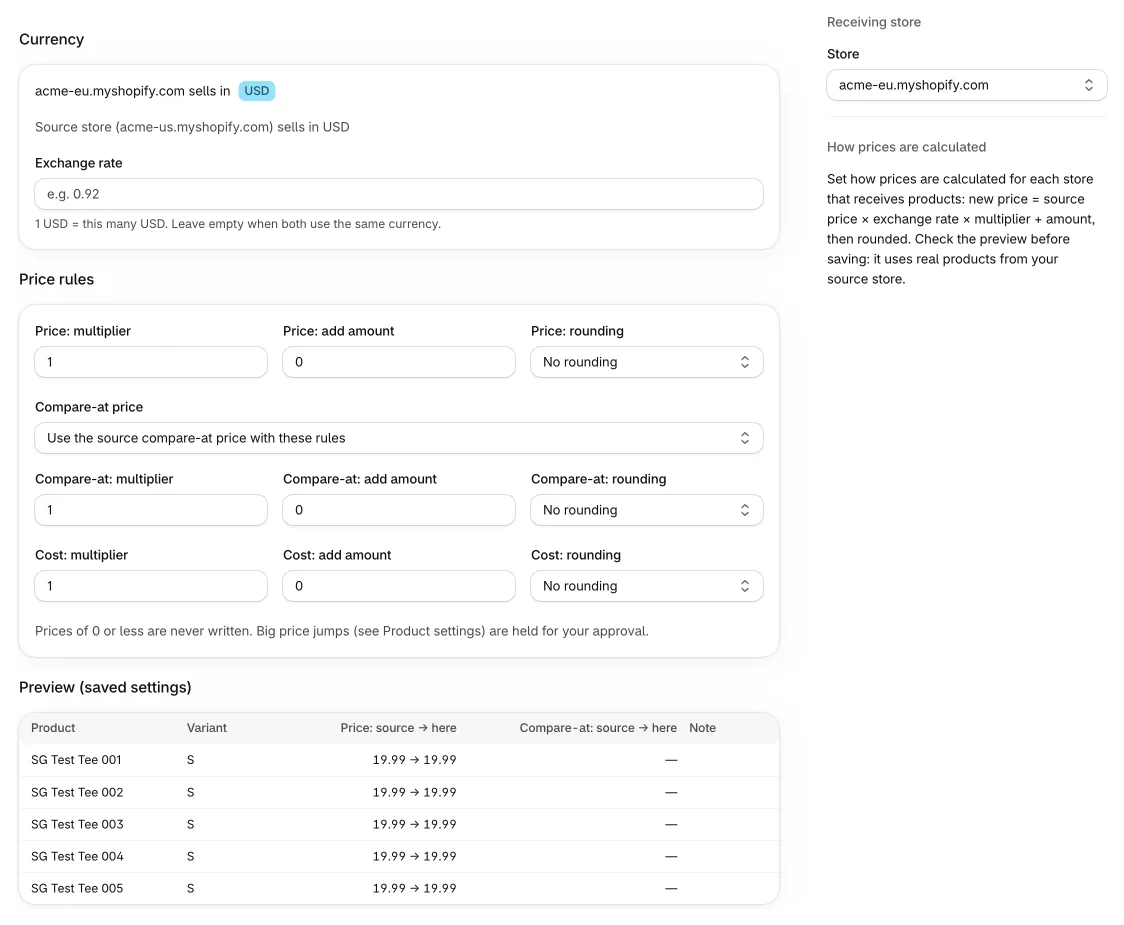
The Price rules section has three rules. Each has the same fields:
- multiplier: for example 1.2 for +20%, or 0.9 for −10%.
- add amount: a fixed amount in this store's currency, added after multiplying.
- rounding: one of the options below.
Rounding options
| Option | What it does | 24.32 becomes |
|---|---|---|
| No rounding | Rounded to the currency's normal decimals only. | 24.32 |
| End in .99 | Keeps the whole number and ends it in .99. | 24.99 |
| End in .95 | Keeps the whole number and ends it in .95. | 24.95 |
| Whole number | Rounds to the nearest whole number (.5 rounds up). | 24 |
| Nearest multiple of… | Rounds to the nearest multiple of the number you enter in multiple (halfway rounds up). | 25 (multiple 5) |
End in .99 and End in .95 never go down to the whole number below: 24.00 becomes 24.99. They can't be used for currencies without cents, such as JPY or KRW.
Price
The selling price of each variant, calculated with the formula above.
Compare-at price
The crossed-out "was" price. Choose how it is written in Compare-at price:
- Use the source compare-at price with these rules (default): the source compare-at price goes through the compare-at multiplier, add amount and rounding, like the price does.
- Calculate from the new price (price × factor): the final price in this store × Compare-at factor, then the compare-at rounding. For example, factor 1.25 on a price of 24.99 gives 31.24 with No rounding. In this mode the compare-at multiplier and add amount are not used.
- Don't write compare-at prices: compare-at prices in this store are left as they are.
A compare-at price is only written when it is higher than the price. If it would be equal or lower, the compare-at price is cleared, so customers never see a "was" price below the selling price.
Cost
Cost per item, used for profit reports. It uses the same multiplier, add amount and rounding fields, and the exchange rate. A cost below 0 is cleared instead of written.
Safety
- Prices of 0 or less are never written. The product is shown with "The calculated price is 0 or less, so it isn't written." Check the rules for that store.
- Big price jumps are held for your approval. By default a price update that changes the store's current price by more than 50% waits on the Holds page as Big price change. Change the limit with Price jump: % in Product settings.
Worked example
Source store sells in USD. Receiving store sells in EUR. Rules: exchange rate 0.92, multiplier 1.2, add amount 0.5, rounding End in .99, compare-at Use the source compare-at price with these rules with the same multiplier and add amount, and no rounding.
| Step | Price | Compare-at |
|---|---|---|
| Source | 20.00 USD | 30.00 USD |
| × exchange rate 0.92 | 18.40 | 27.60 |
| × multiplier 1.2 | 22.08 | 33.12 |
| + add amount 0.5 | 22.58 | 33.62 |
| Rounding | 22.99 EUR (End in .99) | 33.62 EUR (No rounding) |
The compare-at price (33.62) is higher than the price (22.99), so both are written.
Preview (saved settings)
The bottom of the page lists real products from your source store with the result for the selected store. It uses the saved settings, so click Save first to see the effect of your edits. Columns:
- Product and Variant.
- Price: source → here, for example "20.00 → 22.99".
- Compare-at: source → here.
- Note: Needs an exchange rate or Price would be 0 or less when a price can't be written.
If the source store has no products yet, you see No source products to preview yet. To apply new rules to products that are already synced, start Preview full resync on the Products page and check the price changes before you apply (see Products, runs & undo).
Questions
A receiving store sells in another currency and no products were created there.
Enter an Exchange rate for that store and save, then start a new preview from the Products page.
The compare-at price disappeared in a receiving store.
After the rules, the compare-at price was not higher than the price, so it was cleared. Check the compare-at rule, or choose Calculate from the new price (price × factor) with a factor above 1.